TechSee Instant Mirroring
Techsee Google Developer AccountCommunication
3.844.00 Reviews
- Version
- 1.4.3
- Installs
- 100.00K
- Age Rating
- Everyone
Screenshots
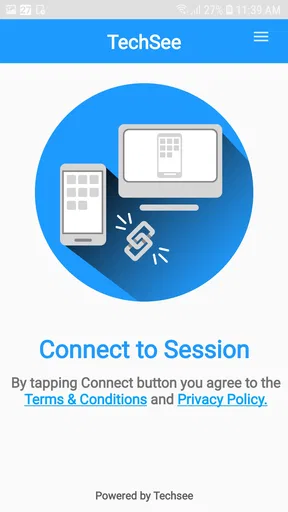
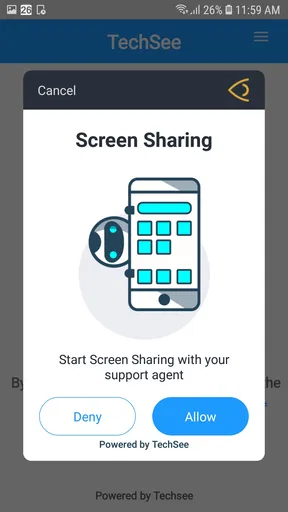
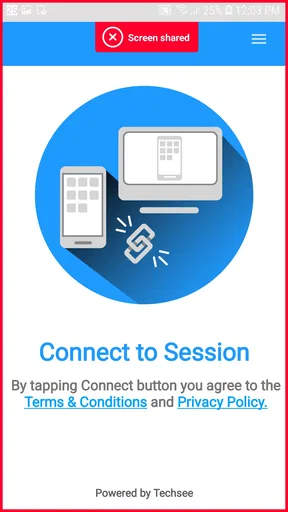
Our Review of TechSee Instant Mirroring
 Analysis by Appyee
TechSee Instant Mirroring is the kind of communication app I would reach for when describing a problem over the phone is taking longer than showing it. Instead of trying to explain which icon, cable, setting, or warning message is on an Android screen, the app is designed around visual support and instant mirroring. That basic idea is useful, but the experience depends heavily on a smooth connection between the person asking for help and the person providing it.
I reviewed it as a practical support tool rather than as a general screen-sharing replacement. It is free, aimed at everyone, and comes from Techsee Google Developer Account. The app has passed the early adoption stage with over one hundred thousand installs, while its average sits at 3.8 from roughly one hundred sixty ratings and forty-four written reviews. Those figures suggest a tool that has found a real audience but may still produce mixed experiences depending on the phone, network, and support situation.
Where the experience usually gets stuck
The first thing I noticed is that mirroring apps are judged by the moment they are needed, not by how attractive their menus look. If someone is already confused by a device problem, every extra step feels significant. A support session can become frustrating when the user does not know whether to wait, accept a request, keep the app visible, or return to the screen they need help with.
That is why I would not treat TechSee as a completely independent troubleshooting tool. Its value appears when another person is guiding the session. The app can help make a visual explanation possible, but it does not replace the support conversation itself. You still need a clear person on the other end who can interpret what appears on the Android display and explain the next action in plain language.
A common point of friction is expecting the app to behave like ordinary video calling. Visual support is more focused than a normal call: the important information is the phone screen, not necessarily the user’s face or surroundings. If you open it expecting a full meeting app, you may wonder why the workflow feels different. I found it more useful to think of it as a temporary window for diagnosis.
Another issue is timing. If the person helping you asks you to switch between settings, messages, and another application, the session can feel less straightforward than a simple conversation. Before beginning, I would close unrelated apps, keep the phone charged, and make sure the person assisting is ready. That small preparation reduces the chance of losing the thread while moving through several screens.
The most important practical lesson is to treat the first connection as part of the support process, not as a separate technical chore. Tell the helper what you are trying to show, wait for clear instructions, and avoid tapping repeatedly when the screen appears to pause. Repeated taps can make it harder to tell whether the app is still connecting or whether a previous action has already been accepted.
What to check before starting
TechSee Instant Mirroring is an Android app with a minimum operating system requirement of Android 7.1. That makes it compatible with a broad range of older devices, but compatibility alone does not guarantee a comfortable session. Older phones may have slower transitions, less available memory, or a display that makes small interface elements difficult to read.
I would begin by checking the Android version in the phone settings and confirming that the device is not already struggling with storage or background activity. This is not a special requirement unique to TechSee; it is sensible preparation for any app that needs to keep a live support session active while the user moves around the phone.
Network quality matters just as much. If the image freezes, the delay may come from the connection rather than the mirroring app. A weak mobile signal, crowded Wi-Fi, or a router that is struggling with several active devices can all make a visual session appear unreliable. When possible, I would move closer to the router or use the more stable connection available before blaming the application.
It also helps to keep the phone awake and hold it in a position that makes the display easy to follow. If the screen repeatedly locks, the helper may lose the exact context of the problem. Likewise, very low brightness or glare can make a setting appear difficult to read even when the mirrored image is working correctly.
The current version is 1.4.3, and the app was released on September 3, 2019. I would therefore approach it as a focused support utility rather than assuming it has the same behavior or polish as newer communication platforms. The age of the project does not make it useless, but it does make basic preparation more worthwhile, especially on an older Android phone.
A setup routine that avoids unnecessary confusion
My preferred routine is simple. First, I describe the problem in one sentence to the person assisting me. Then I open the app and follow the session instructions without jumping between unrelated settings. If the helper asks to see a particular page, I navigate there slowly and keep the phone steady. This gives both sides a shared reference instead of turning the call into a stream of guesses.
Before showing private screens, I would also scan the display for notifications, message previews, account details, or other information that does not belong in the support session. This is an easy step to overlook when the goal is to fix something quickly. A clean notification panel and a deliberate route to the problem screen make the session more focused and more comfortable.
For a family member helping remotely, I would prepare a short instruction such as “open the app, stay on this screen, and tell me when you can see the phone.” For a technical support conversation, I would keep the device close and avoid putting it on a surface where accidental touches are likely. These small choices matter because visual support works best when the person holding the phone remains in control of each action.
If the app appears not to connect, I would not immediately uninstall it. I would first close and reopen it, check the connection, and restart the phone only if the problem continues. I would also ask the other participant to confirm whether they are waiting for the session from their side. A support workflow can look broken when one participant has simply not completed the next step.
Recovering the workflow when mirroring fails
When a session breaks, the most useful approach is to identify the exact stage where it stopped. Did the app open? Did the session begin? Did the helper receive the connection? Did the image appear and then freeze? Each answer points to a different kind of problem, and restarting everything at once removes useful clues.
If the app opens but the session does not progress, I would return to the starting screen and try the process again at a measured pace. If the image appears but becomes delayed, I would check the network before changing anything else. If the helper cannot see the requested screen, I would confirm that I am still inside the active support flow rather than having accidentally left it for another application.
One useful recovery habit is to say out loud what is visible: “the app is open,” “the screen is loading,” or “the image stopped after I opened settings.” That gives the support person information they cannot get from a silent connection. It also prevents both sides from repeating the same instruction while assuming the other person is seeing something different.
For a household scenario, imagine helping a relative who cannot find a phone setting. A normal voice call may lead to a long exchange involving descriptions such as “tap the icon near the top.” With TechSee, the helper can work from the actual display instead. If the session pauses, the relative can report whether the phone itself is still responsive. That distinction helps separate an app connection issue from a broader phone problem.
There is a trade-off here. Mirroring can make directions much clearer, but it can also make the user more dependent on the session. If the connection drops halfway through, they may still not know which steps were completed. I recommend keeping a simple note of the last confirmed action, such as the menu that was opened or the setting that was changed. That makes recovery faster than starting the explanation from the beginning.
When the app is not the cause
Not every failed support session is an app failure. A phone that is overheating, nearly out of storage, frozen in another application, or losing its network connection can make any communication tool behave poorly. If other online services are also slow, the connection is the more likely starting point. If the entire Android interface is lagging, the underlying device may need attention before mirroring can be useful.
The same applies when the problem is caused by an accessory or service outside the phone. A damaged cable, a router issue, a carrier interruption, or a device setting that blocks the action being demonstrated may remain unresolved even when the helper can see the screen perfectly. TechSee can improve visibility; it cannot repair hardware or restore a service that is unavailable.
I would also avoid using a visual support session for situations that require sensitive information unless everyone involved understands exactly what will be visible. A mirrored screen can expose more than the single setting you intended to show if you navigate carelessly. For routine configuration help, that risk is manageable with preparation. For highly private tasks, an in-person explanation or a more controlled support method may be the better choice.
Compared with a standard voice call, the app’s advantage is obvious: it reduces the need to describe visual details. Compared with a full video meeting application, its appeal is narrower. A meeting tool may be better when several people need to participate, when conversation and camera video are equally important, or when you need broader collaboration features. TechSee makes more sense when the central question is “what is currently on this Android screen?”
It is also not the best choice for someone who wants a permanent remote-control system, a team chat platform, or a general-purpose screen recorder. I would choose it for guided support, not for managing a device throughout the day. That distinction prevents disappointment and keeps the app’s focused design in perspective.
Who should use it and who should skip it
I can recommend TechSee Instant Mirroring to Android users who regularly need help with device settings, confusing screens, or service-related instructions and who have a trusted person available to guide them. It should be especially practical for family support, customer assistance, and situations where a spoken description would be less precise than seeing the display directly.
I would be more cautious recommending it to users who expect a polished, all-purpose communication platform. If your priority is group calls, persistent messaging, file exchange, or broad collaboration, a familiar communication service will probably fit better. The same is true if your phone is very slow or your internet connection is unreliable; the app cannot remove those limitations.
The age rating is Everyone, and the app is free, so there is little barrier to trying it for a suitable support situation. Still, “free” does not mean frictionless. The real cost is attention: both participants need to follow the workflow, protect private information, and distinguish a connection problem from a phone problem.
My practical verdict after using the workflow
TechSee Instant Mirroring solves a specific communication problem well in principle: it lets support become visual instead of relying entirely on verbal descriptions. I found that its usefulness comes less from extra features and more from choosing the right moment to use it. When the issue is something visible on an Android screen, that change in perspective can save time and prevent misunderstandings.
Its limitations are equally clear. The session depends on network stability, careful navigation, and cooperation between the person showing the phone and the person providing help. It is not a substitute for a reliable connection, a responsive device, or a thoughtful support conversation. Users who prepare the phone and explain each step will likely get more from it than users who open it in the middle of a rushed problem.
With a 3.8 average and a growing user base, I see it as a useful but situational communication app rather than an essential installation for everyone. I would keep it in mind for remote Android assistance, especially when a voice call has already failed to make the problem clear. If your needs are broader than visual troubleshooting, choose a more complete communication platform instead. For the narrow job it targets, however, TechSee Instant Mirroring can make remote help considerably easier when the setup is handled patiently.
Verdict
Strengths of TechSee Instant Mirroring
- Works without requiring advanced technical knowledge from the customer.
- Can help support agents identify device issues more accurately.
- Useful for troubleshooting apps, settings, and connectivity problems remotely.
- May reduce the need for lengthy phone explanations during support sessions.
- Designed to provide a guided support experience on mobile devices.
Limitations of TechSee Instant Mirroring
- Requires a compatible support session or service provider to be useful.
- Screen sharing may consume additional battery during longer sessions.
- A reliable internet connection is needed for smooth mirroring.
- Users may feel uncomfortable sharing sensitive on-screen information.
- Availability and features can vary depending on the support organization.
Similar Picks in This Category
View All
Google Messages
Google LLC4.6

Gmail
Google LLC4.1

Google Meet
Google LLC4.4

Google Chrome
Google LLC4.1

WhatsApp Messenger
WhatsApp LLC4.6

Carrier Services
Google LLC4.2
Frequently Asked Questions
What is TechSee Instant Mirroring used for?
TechSee Instant Mirroring is a remote visual-support tool that lets a customer share a live view from a smartphone camera with a support agent. It is designed to help technicians understand a problem without visiting the user in person. The agent may guide you through troubleshooting, inspect equipment, identify visible issues, and explain the next steps during a support session.
How does a TechSee Instant Mirroring session work?
A support representative usually sends an invitation, link, or session code to your phone. After opening it, you may be asked to grant access to the camera and microphone, depending on the support workflow. You then point the camera at the relevant device or area while the agent provides instructions. The exact features can vary between companies using the service.
Does TechSee Instant Mirroring require an account or special equipment?
In many cases, TechSee Instant Mirroring is intended for one-time or support-based sessions, so creating a separate account may not be necessary. You generally need a compatible Android or iOS device, a working camera, an internet connection, and an invitation from a participating company. Some sessions may require the latest app version or a supported mobile browser.
Is TechSee Instant Mirroring safe and private to use?
The app requires camera or other permissions so an agent can see the issue you are reporting, but you should review each permission before starting. Only share areas relevant to the support request and avoid displaying passwords, payment details, personal documents, or other sensitive information. Use invitations from trusted companies, end the session when finished, and check the provider’s privacy policy.
What should I do if the app cannot connect or the camera does not work?
First, check that your phone has a stable Wi-Fi or mobile-data connection and that TechSee has permission to use the camera. Close other apps that may be using the camera, restart the session, and update the application if an update is available. If the problem continues, try moving to a brighter location and contact the support agent or company that issued the invitation.
